How to Normalize Sample Pack Loudness for Faster Production
Eliminate volume inconsistency between sample packs to speed up your music production workflow. Learn batch normalization techniques, recommended LUFS targets by sample type, and library organization best practices.
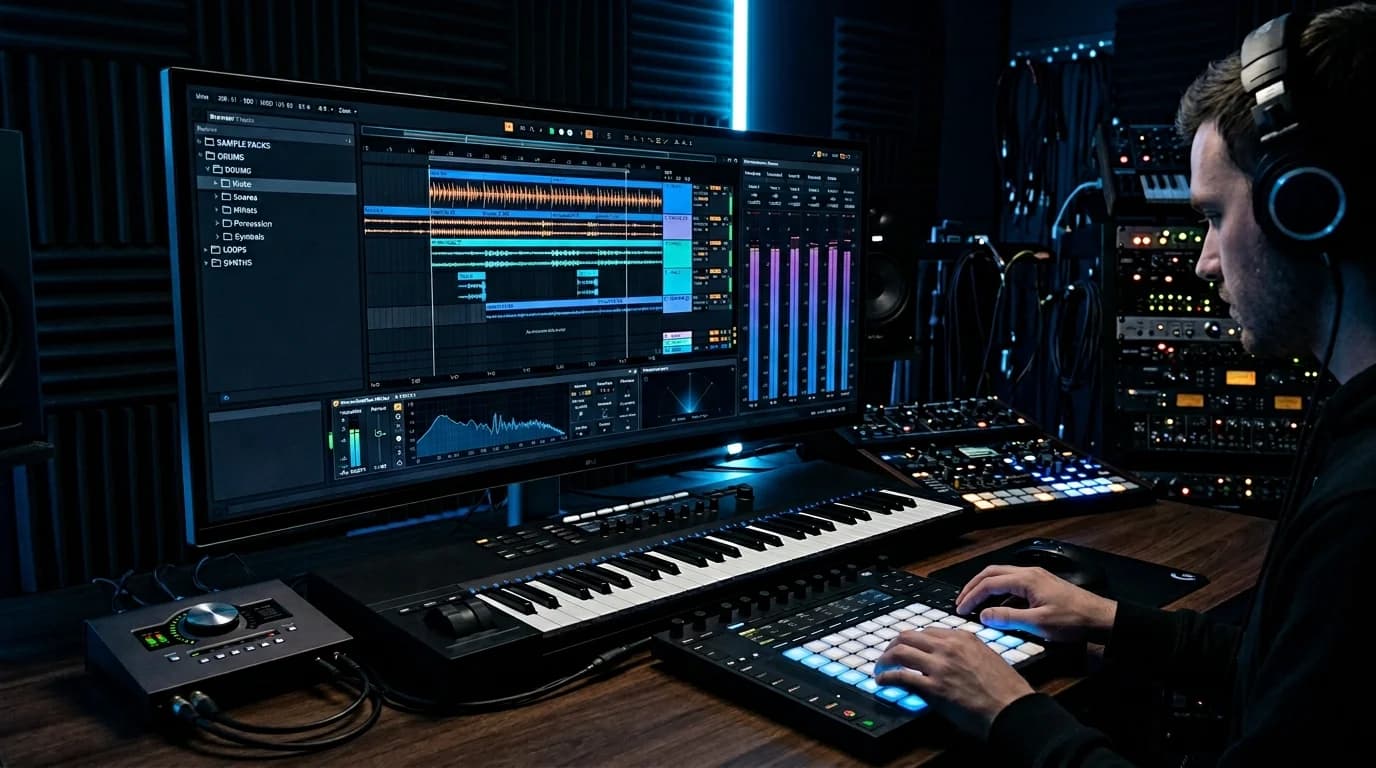
Sample Pack Volume Differences: The Hidden Productivity Killer#
Sample packs are essential production building blocks -- drum kits, basslines, FX, vocal chops. But packs from different creators ship at wildly different volume levels. One kick sample is deafening while another is barely audible. This inconsistency distorts your judgment during production and wastes enormous amounts of time.
Why Volume Differences Matter#
Impact on Production#
1. Biased Sample Selection
Louder samples sound "better" due to a well-documented psychoacoustic bias. When comparing samples at different volumes, you're choosing based on loudness rather than actual quality, leading to poor mix decisions.
2. Constant Gain Riding
Loading a sample into your DAW means adjusting gain every single time. Across 100+ samples in a track, this adds up to significant lost time.
3. Preset Incompatibility
Compressor and EQ presets are designed for specific input levels. When sample loudness varies, presets don't behave as intended.
4. Inaccurate A/B Comparisons
Swapping between samples for comparison is meaningless when they're at different volumes. You must match levels first every time.
Real-World Numbers#
| Sample Pack | Type | Average Loudness |
|---|---|---|
| Pack A (Drums) | Kicks | -8 LUFS |
| Pack B (Drums) | Kicks | -14 LUFS |
| Pack C (Drums) | Kicks | -11 LUFS |
| Pack D (Bass) | Basslines | -16 LUFS |
| Pack E (Bass) | Basslines | -10 LUFS |
A 6 dB difference between kicks from different packs is common. That's a perceived volume difference of roughly 2x -- enough to completely skew your production decisions.
Normalization Methods#
Method 1: DeckReady Batch Processing (Recommended)#
The most efficient approach. Upload entire sample folders and normalize in one operation.
Steps:
- Drag and drop sample files from your folder into DeckReady
Set target LUFS (see recommendations below) 3. Run batch processing 4. Download normalized files 5. Register in your DAW's sample library
Recommended LUFS targets by sample type:
| Sample Type | Target LUFS | Rationale |
|---|---|---|
| Drum one-shots | -12 LUFS | Leaves headroom for mixing |
| Basslines | -14 LUFS | Accounts for low-frequency energy |
| FX / risers | -16 LUFS | Will be adjusted to fit the track |
| Vocal chops | -14 LUFS | Sits in the mix center |
| Ambient / pads | -18 LUFS | Background elements, conservative level |
Advantages:
- Browser-based, no installation
- Local processing for privacy
- Handles hundreds of files quickly
- Free tier available
Method 2: DAW Batch Processing#
Some DAWs have built-in batch capabilities, but they typically process one file at a time.
Logic Pro: Import > adjust region gain > bounce Ableton Live: Insert Utility plugin > adjust gain > resample
Flexible but slow for large sample libraries.
Method 3: Audacity Macros#
Audacity's macro feature can batch-normalize multiple files, but it uses peak normalization, not LUFS. Peak-based normalization doesn't guarantee consistent perceived loudness.
Method 4: ffmpeg Command Line#
for f in *.wav; do
  ffmpeg -i "$f" -af loudnorm=I=-14:LRA=7:TP=-1 "normalized_$f"
done
Accurate and powerful, but requires command-line comfort and initial setup.
Workflow Best Practices#
Building a Normalized Sample Library#
Make normalization a standard step when acquiring new samples:
Purchase new sample pack
  |
Normalize with DeckReady
  |
Save to Normalized folder
  |
Register in DAW sample library
  |
Use in production
Folder Structure#
Samples/
├── Drums/
│   ├── _Normalized/
│   │   ├── Kicks/
│   │   ├── Snares/
│   │   ├── HiHats/
│   │   └── Percussion/
│   └── _Original/
├── Bass/
│   ├── _Normalized/
│   └── _Original/
├── FX/
│   ├── _Normalized/
│   └── _Original/
└── Vocals/
    ├── _Normalized/
    └── _Original/
Always keep originals. You may need the raw loudness later or want to re-normalize at a different target.
Metadata Tagging#
Track normalization status in your file management:
- Append
_N14to filenames (-14 LUFS normalized) - Use MP3Tag to write LUFS values into comment fields
- Include the target standard in folder names
One-Shots vs. Loops#
One-Shot Samples#
Short-duration samples (individual drum hits) can produce unstable LUFS readings due to their brevity.
Best approach:
- Use peak normalization (-1 dBFS) as the primary method
- Apply LUFS normalization as a secondary consistency check
- Normalize within categories (kicks with kicks, snares with snares)
- Don't normalize across categories (a kick and a hi-hat shouldn't share the same LUFS target)
Loop Samples#
Multi-bar loops behave like full tracks and respond well to standard LUFS-based normalization.
Best approach:
- Use Integrated LUFS measurement
- Normalize within genre groups (EDM loops together, jazz loops together)
- Manage different-tempo loops as separate groups
Verifying Results#
DAW Verification#
- Load normalized samples onto DAW tracks in sequence
Check loudness meters for consistency 3. Listen blind and confirm no perceived volume jumps
A/B Comparison#
- Load original and normalized versions side by side
Toggle between them 3. Confirm no quality degradation occurred
Summary#
Sample pack loudness normalization is unglamorous but transformative for production speed. DeckReady batch processing handles hundreds of files in minutes. Build the habit: new sample pack arrives, normalize with DeckReady, store in your organized library. Your gain-adjustment time drops to zero, sample comparisons become meaningful, and your final mixes improve because every production decision was made on a level playing field.
Get DJ mastering tips
Weekly tips for music production.
Related Articles
5 Best Browser-Based Music Tools — No Install Required
Discover 5 powerful browser-based music production and mastering tools. Compare BandLab, Soundtrap, DeckReady, Amped Studio, and AudioMass — with feature breakdowns and use-case recommendations.
Compressor Basics Explained — A DJ & Producer Beginner's Guide
Learn how audio compressors work: threshold, ratio, attack, release explained simply. Understand DJ-relevant compression techniques, compressor types, and how DeckReady applies optimized compression automatically.
10 Best Free DJ Tools in 2026: From Music Management to Audio Quality
Discover the top 10 free tools every DJ needs in 2026. Covers DeckReady for loudness normalization, rekordbox for library management, Audacity for editing, and more — all free to use.
5 Best Free Mastering Tools in 2026: Ranked for Beginners
Compare the top 5 free mastering tools available in 2026. DeckReady, LANDR, BandLab, Audacity, and Soundtrap reviewed with features, pros, cons, and a beginner-friendly ranking.