How to A/B Compare Audio Like a Pro — Train Your Ears
Learn the correct way to A/B compare audio before and after processing. Eliminate loudness bias, use blind testing, and focus on the right frequency bands to make better mixing and mastering decisions.
"It Sounds Better" Is Not Good Enough#
You applied an EQ, ran a compressor, or used a mastering preset — and it "sounds better." But does it really? Or did your ears just trick you?
Human hearing has a well-documented flaw: louder sounds are perceived as better. This is called loudness bias. If mastering raises the overall level even slightly, your brain will prefer the processed version — even if the actual tonal quality got worse.
A/B comparison exists to eliminate this illusion and let you make decisions based on real sonic differences.
What Is A/B Comparison?#
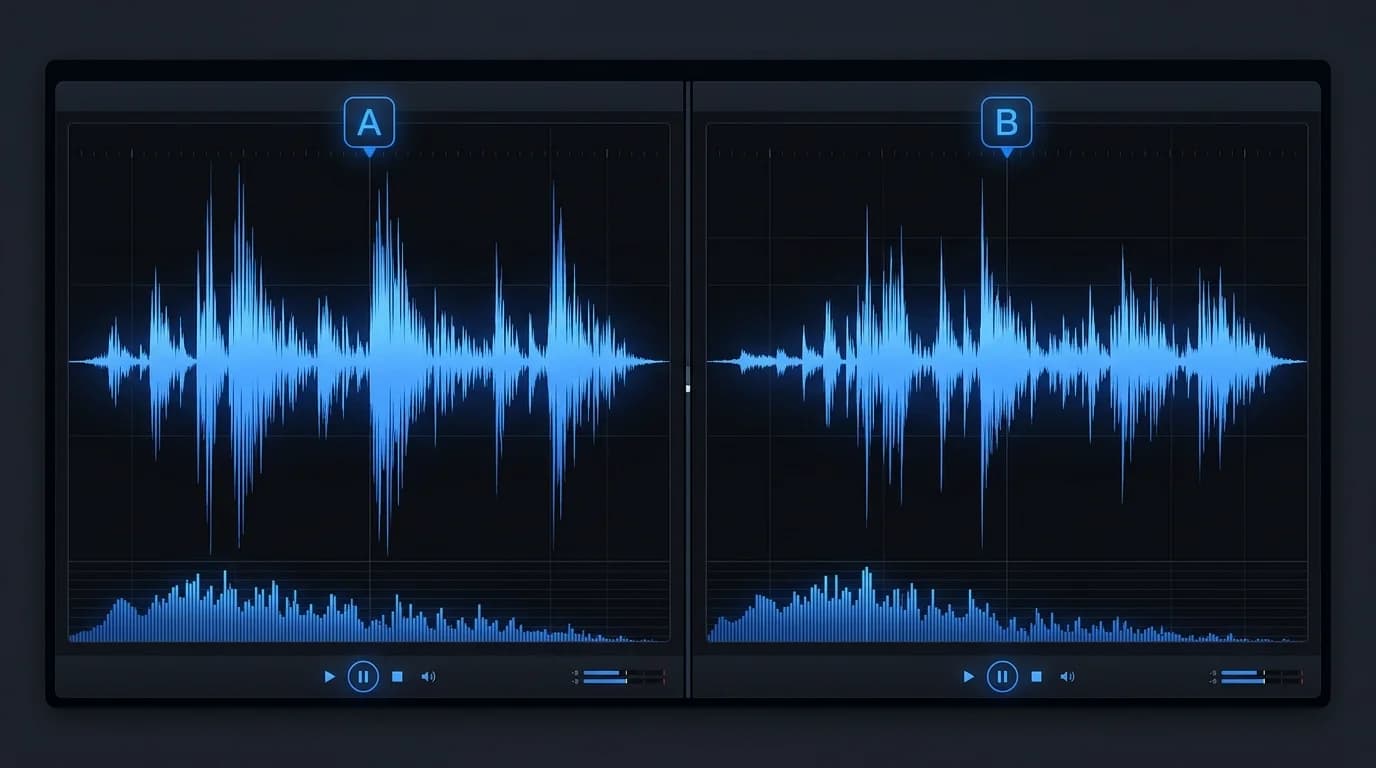
A/B comparison means switching between the unprocessed (A) and processed (B) versions of your audio to judge changes objectively.
Why It Matters#
Audio processing is full of perceptual traps:
| Bias | What Happens | Example |
|---|---|---|
| Loudness bias | Louder = better | Post-mastering sounds "improved" but it's just louder |
| Confirmation bias | You hear what you expect | Expensive plugin must sound better, right? |
| Order effect | The second sample sounds better | A→B listening order favors B |
| Memory decay | You forget the first sound quickly | After 5 seconds, accurate comparison is impossible |
A/B comparison is the scientific approach to minimizing all of these.
How to A/B Compare Correctly#
Step 1: Match the Levels#
This is the most critical step. If the before and after versions differ in loudness (LUFS), loudness bias invalidates your comparison.
- Normalize both versions to the same LUFS value
- A difference within 0.5 LUFS is acceptable
- If the gap exceeds 1 LUFS, the comparison is unreliable
Step 2: Switch Instantly#
Toggle between A and B as fast as possible — ideally within 0.5 seconds. Human echoic memory degrades rapidly, and after 5 seconds you can no longer compare accurately.
Step 3: Repeat the Same Section#
Don't compare different parts of a song. Loop the same section and listen at least 3 times, focusing on specific elements each pass.
Step 4: Go Blind#
If possible, compare without knowing which is A and which is B. This eliminates confirmation bias. Have a friend toggle randomly, or use a tool with blind test functionality.
What to Listen For#
Don't listen to the "overall vibe." Instead, focus on specific elements each time.
Frequency Band Checklist#
| Band | Range | What to Check |
|---|---|---|
| Low | 20–200 Hz | Kick presence, bass clarity, boominess |
| Low-mid | 200–500 Hz | Warmth, muddiness, vocal body |
| Mid | 500 Hz–2 kHz | Vocal clarity, instrument separation |
| Upper-mid | 2–8 kHz | Presence, vocal intelligibility, harshness |
| High | 8–20 kHz | Air, cymbal shimmer, sibilance |
Dynamics Check#
- Transients — Are kick and snare attacks preserved?
- Attack sharpness — Has the edge been lost?
- Sustain/decay — Is the reverb tail natural?
- Overall dynamics — Is the contrast between loud and quiet sections maintained?
Stereo Image Check#
- Width — Has the horizontal spread changed?
- Panning — Are instruments still in the right positions?
- Mono compatibility — Does it collapse when summed to mono?
How to Run a Blind Test#
DIY Method#
- Load both files into a player
- Look away and randomly press play on either version 3. Note which one sounds "better" 4. Repeat 10 times and check consistency
If you pick the same version 7+ times out of 10, the difference is audible. A 5:5 or 6:4 split means there's no meaningful difference.
Common Discoveries#
Blind testing often reveals surprising truths:
- Expensive plugins and free ones sound the same — more common than you think
- The unprocessed version sounds better — over-processing backfires
- Differences exist in only one frequency range — not everything changes
DeckReady's A/B Preview Feature#
DeckReady includes a built-in A/B preview function for comparing audio before and after processing.
| Feature | Description |
|---|---|
| Instant switching | Toggle between processed and unprocessed with zero latency |
| Auto level matching | LUFS values are automatically aligned to eliminate loudness bias |
| Position lock | Playback position stays synced during switching |
| Waveform display | Visual comparison of before and after waveforms |
The auto level matching is particularly important. Most A/B tools don't correct for volume differences, leaving you vulnerable to loudness bias. DeckReady automatically matches LUFS values so you're evaluating pure tonal changes.
Use Cases#
- Preset selection — Compare Club, Lounge, and Broadcast presets to find the best fit
- Custom tweaks — Adjust LUFS targets or EQ settings with real-time A/B feedback
- Processing necessity — Objectively decide if processing is even needed
Ear Training Exercises#
A/B comparison skills improve with regular practice.
Recommended Exercises#
- EQ training — Boost a specific band by ±3 dB and identify which frequency changed
- Compression training — Identify light, medium, and heavy compression by ear 3. Format comparison — Blind test WAV vs. MP3 at 320 kbps and 128 kbps 4. Active listening — During your commute, consciously focus on individual frequency bands
Skill Benchmarks#
| Level | What You Can Hear |
|---|---|
| Beginner | 3 dB+ EQ changes, WAV vs. MP3 128 kbps |
| Intermediate | 1–2 dB EQ changes, lossless vs. MP3 320 kbps |
| Advanced | 0.5 dB changes, subtle compression differences |
Summary#
A/B comparison transforms audio judgments from gut feeling to evidence-based decisions.
- Match levels — The single most important step to eliminate loudness bias
- Switch instantly — 0.5 seconds or less 3. Listen by frequency band — Focus on specifics, not the overall impression 4. Use blind testing — Remove confirmation bias 5. Use DeckReady's A/B feature — Level-matched comparison with zero effort
Building a reliable internal reference for "good sound" is a lifelong asset for any DJ or music producer.
Get DJ mastering tips
Weekly tips for music production.
Related Articles
How to Improve the Sound Quality of Downloaded Music (Beginner's Guide)
A beginner-friendly guide to improving downloaded music quality. Learn to identify low-quality audio, understand what mastering can and can't fix, and use DeckReady for quick sound improvements.
Is Mastering Really Necessary? When You Need It and When You Don't
A practical guide to when mastering is essential and when you can skip it. Covers music distribution, DJ sets, BGM production, and demos — with concrete before/after examples and quick-start recommendations.
How to Fix SoundCloud Audio Quality for Club-Ready DJ Sets
SoundCloud's 128kbps downloads sound weak on club systems. Learn how to optimize low-bitrate audio for professional DJ use with DeckReady's batch processing workflow.
Stop Playing Raw YouTube Rips at Gigs: Fix Audio Quality for Free
YouTube and SoundCloud downloads sound terrible on club systems. Learn how to fix loudness, bass, and high-frequency issues in seconds using browser-based mastering with DeckReady.