OBS Audio Filters Complete Guide: Transform Your Stream Sound
Master every OBS Studio audio filter -- gain, noise gate, compressor, limiter, and noise suppression. Get recommended settings for gaming, talk shows, and singing streams, plus DeckReady BGM integration tips.
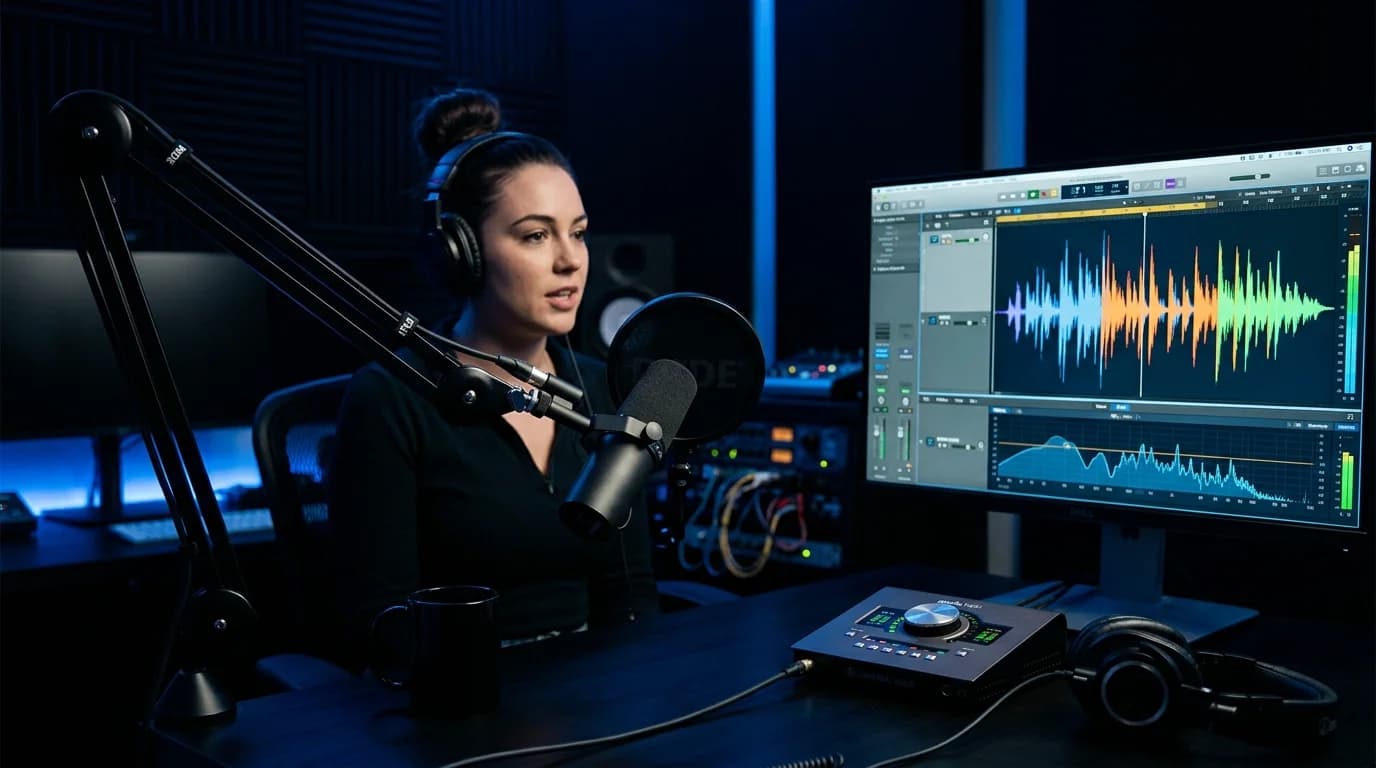
OBS Audio Filters Can Transform Your Stream#
OBS Studio is the most important tool in a streamer's toolkit. Many streamers obsess over video settings while leaving audio filters at their defaults. But configuring OBS audio filters correctly can take your stream from amateur to professional-sounding -- no expensive audio interface or mixer required.
This guide covers every OBS audio filter, recommended parameter values, the critical importance of filter order, and how to combine OBS with DeckReady for complete audio quality control.
Adding Filters in OBS#
- In the Audio Mixer, click the gear icon on your mic source
Select "Filters" 3. Click the "+" button to add a new filter 4. Choose your filter type
Filter Order Is Everything#
Audio filters process top to bottom, and the order dramatically affects the result. Wrong order can make audio worse, not better.
Recommended order:
1. Noise Suppression
2. Noise Gate
3. Gain
4. Compressor
5. Limiter
The logic: clean the signal first, then shape and control it.
Detailed Filter Settings#
1. Noise Suppression#
Purpose: Automatically remove background noise -- air conditioning, fans, PC noise, keyboard clicks.
OBS offers two suppression methods:
| Method | Characteristics | CPU Load | Quality |
|---|---|---|---|
| RNNoise | AI-based, high-quality removal | Moderate | Excellent |
| Speex | Traditional noise removal | Low | Good |
Recommended:
- Method: RNNoise (if your PC can handle it)
- Suppression level (Speex only): -30 to -20 dB
Why it goes first: Placing noise suppression before the compressor prevents the compressor from amplifying noise during quiet moments. Without this order, noise pumps up whenever you stop talking.
2. Noise Gate#
Purpose: Completely mute audio below a threshold. Silences small noises when you're not speaking.
| Parameter | Recommended | Description |
|---|---|---|
| Close Threshold | -40 to -35 dB | Gate closes below this level |
| Open Threshold | -35 to -30 dB | Gate opens above this level |
| Attack | 5-10 ms | Time for gate to open |
| Hold | 50-100 ms | Duration gate stays open |
| Release | 50-100 ms | Time for gate to close |
Tips:
- Keep a 3-5 dB gap between close and open thresholds to prevent chattering
- Longer hold time prevents the gate from cutting between words
- Too-long attack clips the beginning of speech
Note: The noise gate is binary -- audio passes or it doesn't. If you speak softly often, set the open threshold lower (-45 dB) to avoid cutting off quiet speech.
3. Gain#
Purpose: Boost or cut the mic input level when the hardware signal is too low.
Recommended: 0 to +6 dB (adjust while watching the meter)
Target: Normal speech should register -12 to -6 dBFS on the OBS audio meter.
Important: Always set your hardware gain (mic or audio interface) first. OBS gain should be for fine-tuning only -- over-boosting amplifies noise along with your voice.
4. Compressor#
Purpose: Reduce the dynamic range between quiet and loud speech. Makes whispers and shouts both audible.
| Parameter | Recommended | Description |
|---|---|---|
| Ratio | 3:1 to 4:1 | How much to compress above threshold |
| Threshold | -18 to -14 dB | Compression starts above this level |
| Attack | 3-6 ms | How fast compression engages |
| Release | 80-120 ms | How fast compression releases |
| Output Gain | +2 to +4 dB | Makeup gain for compressed volume |
Ratio guide:
- 2:1 -- Soft compression (talk streams)
- 3:1 to 4:1 -- Standard (gaming streams)
- 6:1+ -- Heavy compression (high-energy streams with lots of shouting)
Attack detail: Too short (under 2 ms) makes your voice sound muffled. Too long (over 10 ms) fails to catch peaks. 3-6 ms is the sweet spot.
5. Limiter#
Purpose: Set an absolute volume ceiling that audio cannot exceed. The last line of defense against clipping.
| Parameter | Recommended | Description |
|---|---|---|
| Threshold | -3 to -1 dB | Maximum allowed level |
| Release | 60-100 ms | Recovery time after limiting |
Why -3 dB instead of 0 dB? Streaming platforms (Twitch, YouTube) re-encode your audio, and signals near 0 dB can distort during that process. The -3 dB headroom prevents platform-side clipping.
Testing Your Filter Chain#
After configuration, verify with these tests:
- Whisper test: Does the gate open and close properly?
- Normal speech test: Is gain reduction 2-6 dB on the compressor? 3. Shout test: Does the limiter engage without clipping? 4. Silence test: Any audible noise when you're not talking?
Use OBS's recording feature to capture 30 seconds of audio and play it back with headphones for the most reliable check.
DeckReady Integration for BGM#
OBS filters handle your mic audio brilliantly, but they can't normalize the volume of BGM tracks and sound effects. That's where DeckReady comes in.
The Workflow#
- Gather all BGM tracks you'll use on stream
Process them in DeckReady with a consistent loudness target (-20 LUFS for gaming, -22 for talk shows) 3. Load processed files as OBS media sources 4. Fine-tune the BGM fader in OBS's mixer
BGM Preset Guide#
| Stream Style | DeckReady Preset | Target LUFS |
|---|---|---|
| Gaming | Standard | -20 LUFS |
| Talk/chat | Lounge | -22 LUFS |
| DJ stream | Club | -14 LUFS |
| Work/study | Lounge | -24 LUFS |
Preset Profiles by Stream Type#
Gaming Streams#
Noise Suppression: RNNoise
Noise Gate: Open -32dB / Close -38dB / Attack 5ms
Gain: +3dB
Compressor: Ratio 4:1 / Threshold -16dB / Attack 5ms / Release 100ms / Output +3dB
Limiter: Threshold -3dB / Release 80ms
Talk/Chat Streams#
Noise Suppression: RNNoise
Noise Gate: Open -35dB / Close -40dB / Attack 8ms
Gain: +2dB
Compressor: Ratio 3:1 / Threshold -18dB / Attack 6ms / Release 120ms / Output +2dB
Limiter: Threshold -3dB / Release 100ms
Singing/Music Streams#
Noise Suppression: Speex -20dB (RNNoise can clip singing)
Noise Gate: Disabled (breath sounds are part of the performance)
Gain: +2dB
Compressor: Ratio 2:1 / Threshold -20dB / Attack 10ms / Release 150ms / Output +2dB
Limiter: Threshold -1dB / Release 60ms
Common Mistakes#
Mistake 1: Wrong filter order#
Compressor before noise suppression amplifies noise. Always clean first, compress second.
Mistake 2: Over-compression#
Ratios above 10:1 make your voice sound robotic and flat. Keep it at 6:1 or below.
Mistake 3: No limiter#
Compressors alone can't catch sudden peaks. Always place a limiter last as a safety net.
Mistake 4: Double-gaining#
High hardware gain plus high OBS gain equals amplified noise. Set hardware gain first, use OBS gain only for fine-tuning.
Summary#
The seven key points for OBS audio filter setup:
- Filter order: Noise Suppression > Noise Gate > Gain > Compressor > Limiter
- Use RNNoise for AI-powered noise removal 3. Noise gate gap: 3-5 dB between close and open thresholds 4. Compressor ratio: 3:1 to 4:1 is the standard starting point 5. Limiter at -3 dB for platform-safe headroom 6. Pre-process BGM with DeckReady for consistent background music levels 7. Always test record after changing settings
Proper filter configuration delivers professional-quality audio without expensive gear. Take 15 minutes to set this up today.
Get DJ mastering tips
Weekly tips for music production.
Related Articles
Apple Music vs Spotify Sound Quality — Complete Comparison 2026
Apple Music vs Spotify audio quality compared in detail. Codecs (AAC vs Ogg Vorbis), lossless streaming, loudness normalization differences, and how to master your tracks for both platforms.
Compressor Basics Explained — A DJ & Producer Beginner's Guide
Learn how audio compressors work: threshold, ratio, attack, release explained simply. Understand DJ-relevant compression techniques, compressor types, and how DeckReady applies optimized compression automatically.
How to Turn a Demo Into a Release-Ready Track
Step-by-step guide to mastering demo tracks for streaming platforms. Learn DistroKid and TuneCore requirements, Spotify's -14 LUFS target, common demo problems, and how DeckReady's Streaming preset gets you release-ready.
Game Streaming Audio Guide: Balancing Game Sound, Mic, and BGM
Master the audio balance for game streaming and let's plays. Learn optimal volume ratios for game audio, microphone, and BGM, plus OBS filter chains, compression settings, and platform-specific loudness targets.