Game Streaming Audio Guide: Balancing Game Sound, Mic, and BGM
Master the audio balance for game streaming and let's plays. Learn optimal volume ratios for game audio, microphone, and BGM, plus OBS filter chains, compression settings, and platform-specific loudness targets.
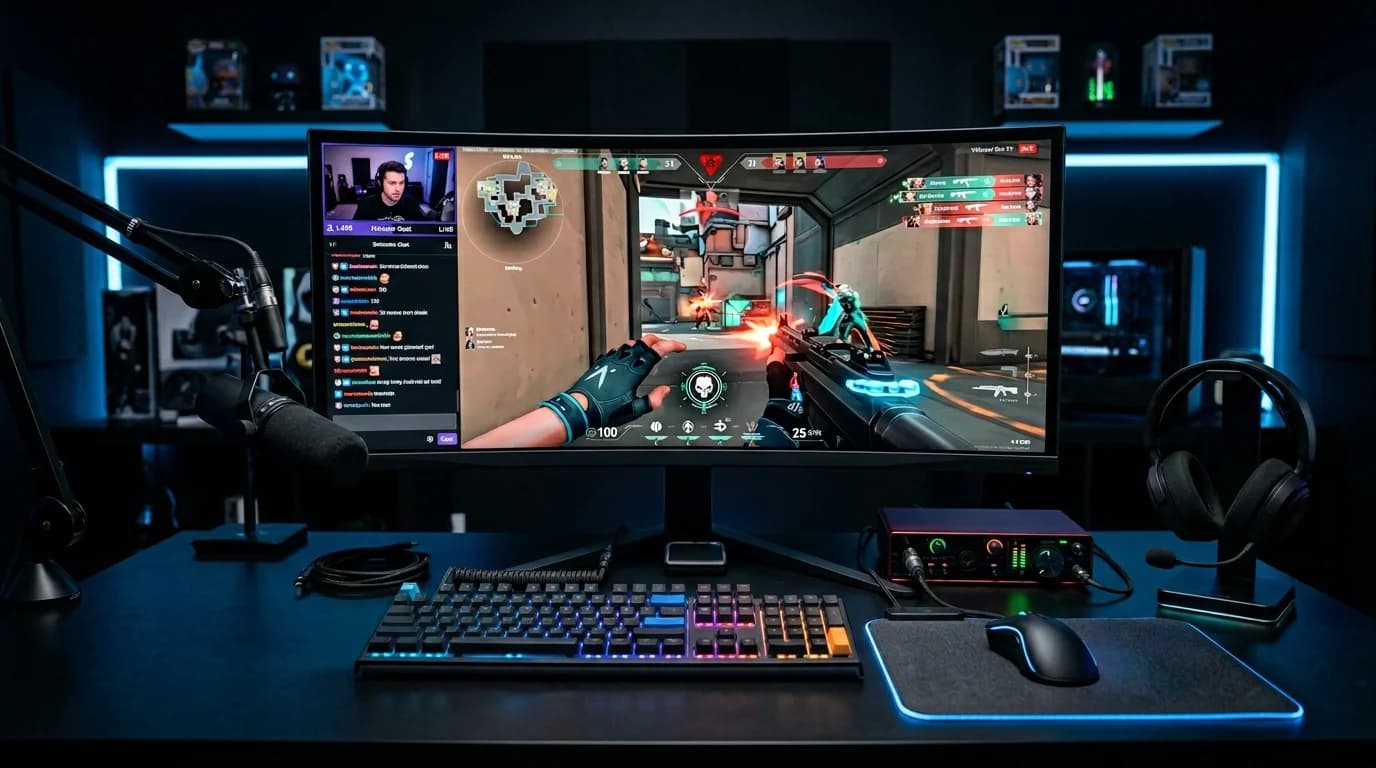
Game Streaming Audio Has Three Sources#
Audio quality is a make-or-break factor for stream viewership. Viewers will tolerate rough video, but hard-to-hear audio drives immediate drop-offs.
Game streaming audio consists of three sources:
- Game audio: Sound effects, in-game music, environmental sounds
- Microphone: The streamer's commentary 3. Stream BGM: Music for waiting screens and breaks
When the balance between these three breaks down, you get complaints like "game audio is drowning out your voice," "your mic is clipping," or "the BGM is way too loud."
This guide provides specific numbers for comfortable, professional-sounding stream audio.
Optimal Volume Ratios#
The Baseline Balance#
| Source | Recommended Level | Offset from Mic | Priority |
|---|---|---|---|
| Microphone | -12 to -6 dBFS | Baseline | Highest |
| Game audio | -24 to -18 dBFS | -12dB from mic | High |
| Stream BGM | -30 to -24 dBFS | -18dB from mic | Low |
Your mic is the star. Viewers tune in to hear you talk. Game audio and BGM are supporting actors.
Genre-Specific Adjustments#
FPS / TPS (Shooters)
- Game audio slightly louder — footsteps and gunfire carry information
- Recommended: Mic -10dB / Game -16dB / BGM -28dB
RPG / Story-driven
- Game audio lower — prevent dialogue overlap with commentary
- Recommended: Mic -10dB / Game -22dB / BGM off
Rhythm Games
- Game audio takes priority — music IS the gameplay
- Recommended: Mic -14dB / Game -10dB / BGM off
Horror Games
- Game and mic roughly equal — both ambient sound and reactions matter
- Recommended: Mic -12dB / Game -14dB / BGM off
Mic Audio Processing#
Noise Removal#
Streaming environments pick up keyboard clicks, air conditioning, and household sounds.
Noise gate settings:
- Threshold: -40 to -35dBFS
- Attack: 1–5ms (opens quickly)
- Release: 50–100ms (closes naturally)
- Hold: 50ms (prevents chattering)
Set the threshold carefully — too aggressive and it cuts off quiet speech.
Compression#
Commentary volume fluctuates constantly — shouts, whispers, and everything between. Compression narrows this range.
- Threshold: -20 to -16dBFS
- Ratio: 3:1 to 4:1
- Attack: 5–10ms
- Release: 100–150ms
- Makeup gain: Compensate for reduction
EQ#
Improve voice clarity with targeted EQ:
- Below 80Hz: High-pass filter (removes vibration and pop noise)
- 200–300Hz: -2 to -3dB (reduce muddiness)
- 2–4kHz: +2 to +3dB (boost voice clarity)
- 6–8kHz: +1 to +2dB (add breath and presence)
Limiter#
Prevent clipping from sudden shouts or excited reactions:
- Ceiling: -3 to -1dBFS
- Release: 50–100ms
BGM Loudness Management#
Waiting Screen and Break BGM#
When you're not actively streaming gameplay, BGM becomes the primary audio. Raise volume to keep viewers engaged.
- Level: -16 to -12 dBFS
- Genre: Lo-Fi, chillout, game-appropriate music
- Important: Use royalty-free tracks only
In-Stream BGM#
During active gameplay, BGM should be nearly inaudible — present but never distracting.
- Level: -30 to -24 dBFS
- Genre: Instrumentals, ambient
- Avoid: Vocal tracks that compete with your voice
Normalizing BGM Tracks#
When using multiple BGM tracks, normalize them all to the same LUFS value beforehand. Volume jumps between songs are distracting. A target of -16 LUFS is appropriate for waiting-screen BGM.
OBS Studio Setup#
Audio Mixer Configuration#
- Game audio (Desktop Audio): Set slider to -18 to -12dB
- Microphone: Set slider to -6 to 0dB 3. BGM (Media Source): Set slider to -24 to -18dB
Audio Filter Order#
OBS processes filters top-to-bottom. Use this order:
- Noise Suppression (RNNoise recommended)
- Noise Gate 3. Compressor 4. Gain (only if needed) 5. Limiter
This creates a natural flow: noise removal → dynamics control → level adjustment.
Monitoring#
Always monitor with headphones during streams. Use OBS's "Advanced Audio Properties" to set monitoring mode for each source.
Platform-Specific Settings#
YouTube Live#
- Target loudness: -14 LUFS
- Sample rate: 48kHz
- Bit rate: 128kbps (AAC)
Twitch#
- Target loudness: -14 LUFS
- Sample rate: 48kHz
- Bit rate: 160kbps (AAC)
Common Problems and Fixes#
Voice buried under game audio#
Usually the game audio is too loud. Dropping game audio by -6dB makes a dramatic difference.
Mic clipping#
Either the limiter is misconfigured or mic gain is too high. Lower mic input gain first, then verify limiter ceiling.
Viewers say "audio is too quiet"#
Overall stream loudness is too low. Adjust OBS output toward -14 LUFS and add gain if needed.
Key Takeaways#
- Build your balance around the microphone as the primary source
Game audio sits -12dB below your mic 3. BGM stays -18dB below your mic 4. Process audio with noise gate → compressor → limiter in that order 5. High-pass at 80Hz removes rumble and pops 6. Pre-normalize all BGM tracks to consistent loudness 7. Always monitor with headphones during your stream
Well-configured audio directly drives viewer satisfaction and channel growth.
Get DJ mastering tips
Weekly tips for music production.
Related Articles
Audio Settings for Educational YouTube Videos: A Complete Guide
Optimize audio for educational and tutorial YouTube videos. Learn the ideal loudness levels, BGM-to-narration balance, EQ settings for listener comfort, and export configurations for maximum clarity.
Fitness Gym BGM Settings: Audio That Boosts Workout Performance
Optimize your gym's BGM for maximum workout motivation. Learn zone-specific volume settings, BPM recommendations, the science of music and exercise performance, and how Club presets enhance training energy.
Instagram Reels Audio Optimization: Settings That Get Views
Optimize your Instagram Reels audio for maximum engagement. Learn the -14 LUFS target, BGM-to-voice balance ratios, in-app vs. pre-processing workflows, and content-specific audio design strategies.
How to Dramatically Improve Live Stream Audio Quality [OBS + Mastering]
Transform your live stream audio with proper OBS settings and BGM pre-mastering. Learn audio filter configuration, mic-to-BGM balance, and how DeckReady eliminates volume inconsistency during streams.