How to Make GarageBand Tracks Sound Professional
Turn your GarageBand productions into release-ready tracks. Learn GarageBand's real limitations, optimal export settings, mixing tips, and how to master with DeckReady for Spotify and Apple Music quality.
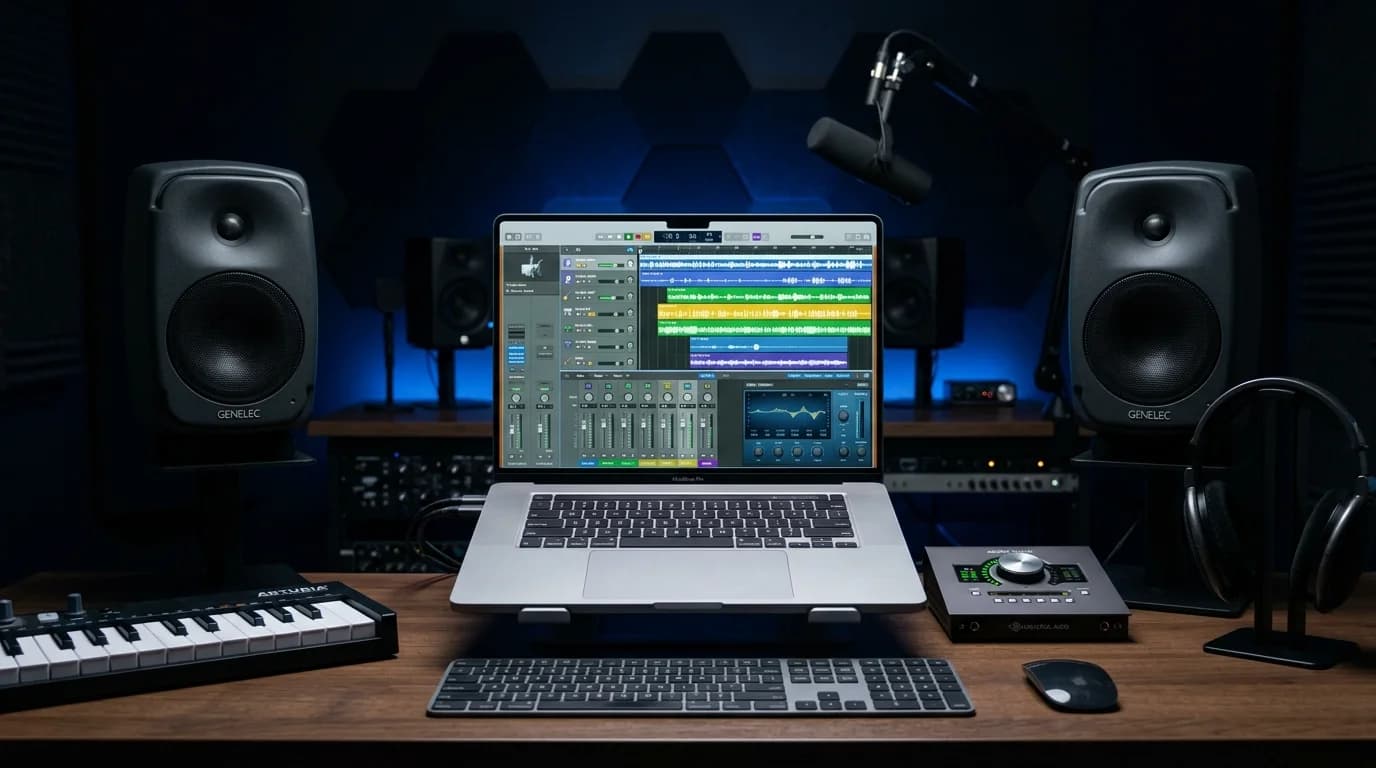
Can GarageBand Tracks Really Sound "Professional"?#
Short answer: yes. With proper mastering, GarageBand productions can reach quality levels competitive with tracks on Spotify and Apple Music.
However, GarageBand has real limitations you need to understand and work around. This guide honestly explains those constraints and shows you how to overcome them.
GarageBand Audio Quality: Myths and Reality#
Myth: GarageBand Sounds Bad#
This is incorrect. GarageBand's internal processing uses 32-bit floating point — the same precision as Logic Pro. Apple's bundled instruments and effects are genuinely high quality. "Bad sound" isn't inherent to GarageBand.
Reality: GarageBand Has Feature Limitations#
Quality issues come from feature restrictions, not processing quality.
Plugin restrictions: Third-party AU/VST plugins aren't available on iOS. Mac version supports AU plugins, but dedicated mastering plugins are limited.
Limited master bus processing: The effects you can insert on the master bus are restricted, making it hard to build a proper mastering chain.
Mixing constraints: Fewer parametric EQ bands, no multiband compressor, no M/S processing.
Export limitations: Format and quality options are limited (more below).
Optimal Export Settings from GarageBand#
The quality of your mastering source file depends entirely on your export settings.
Mac Export Steps#
- Go to Share menu → "Export Song to Disk"
Configure format settings
Recommended:
- Format: AIFF (lossless, equivalent to WAV)
- Quality: Highest
- Sample rate: 44.1kHz (CD quality)
GarageBand can also export WAV, but AIFF is Apple's native format and the safest choice.
iOS Export Steps#
- Tap Share button
Select "Song" 3. Choose quality
Recommended:
- Quality: Uncompressed (WAV)
- Export in stereo
Export Precautions#
Remove master bus limiters: If you have a limiter or compressor on GarageBand's master track, bypass it before export. Mastering source files need maximum headroom.
Check peak levels: If the exported file peaks at 0dB, lower the master fader to -3dB to -6dB and re-export.
Improving Your GarageBand Mix#
Better mixing leads to better mastering results. Here's what you can optimize within GarageBand.
Use Panning#
Set each track's stereo position. Everything piled in the center creates a muddy, congested mix.
Basic panning guidelines:
- Kick, bass, vocals: Center
- Guitars: Slightly left and right (L30–R30)
- Synth pads: Wide (L50–R50)
- Hi-hat: Slightly right
- Percussion: Spread across the stereo field
Clean Up with EQ#
Apply GarageBand's EQ to each track and cut unnecessary frequencies:
- Vocal tracks: Cut below 80Hz
- Guitar tracks: Cut below 100Hz
- Kick tracks: Cut unnecessary highs above 8kHz
This alone dramatically improves mix clarity.
Optimize Level Balance#
Track fader balance is the single most important factor. In GarageBand's mixer view:
- Set the vocal (or lead instrument) level first
Bring in kick and bass to match 3. Position remaining instruments 4. Adjust effects (reverb/delay) last
Mastering with DeckReady#
Take your exported GarageBand file and master it with DeckReady.
Step 1: Upload#
Upload your AIFF or WAV file to DeckReady.
Step 2: Choose Preset#
Select based on your release target:
- Streaming release: Streaming preset (-14 LUFS)
- Club play: Club preset (high loudness)
- Background music: Calm preset (gentle processing)
Step 3: Listen and Compare#
A/B the processed and original versions. Focus on:
- Is the loudness appropriate?
- Is the low end tighter?
- Are vocals clearer?
- Is the overall balance improved?
Step 4: Download#
Download in WAV format. This file is your distribution-ready master.
Moving from GarageBand to Logic Pro#
Once you've learned the fundamentals in GarageBand, Logic Pro is the natural next step.
Migration Benefits#
- Pro-grade plugins: Linear Phase EQ, Multipressor, Adaptive Limiter
- Flexible routing: Buses and sends without limitations
- Third-party plugins: Industry standards like FabFilter and iZotope
- Mastering workflows: Cross-project mastering, album-level processing
Migration Barriers#
- Price: One-time purchase (approximately $200)
- Learning curve: GarageBand knowledge transfers, making it easier than starting from zero
- Feature density: Takes time to master
Project Compatibility#
GarageBand projects open directly in Logic Pro. This is a major advantage — you can remix and remaster past work using Logic's superior toolset.
Real-World Success Stories#
GarageBand-produced tracks have achieved commercial success many times over. Indie artists and beatmakers have created tracks entirely on GarageBand's iOS version that went on to land Spotify playlist placements — after proper mastering.
What matters isn't the tool — it's the final output. Understanding GarageBand's constraints and compensating through mastering makes professional-quality releases entirely achievable.
Final Thoughts#
Making GarageBand tracks sound professional comes down to three steps. First, craft a careful mix within GarageBand. Second, export as lossless audio (AIFF/WAV) with adequate headroom. Third, master with DeckReady or similar tools for final polish. Follow this process and your GarageBand productions will stand confidently alongside any professionally produced track on streaming platforms. Tool limitations are real, but knowledge and technique overcome them.
Get DJ mastering tips
Weekly tips for music production.
Related Articles
What Is Mastering? A Complete Beginner's Guide for 2026
Understand audio mastering from the ground up: what it is, how it differs from mixing, the specific processing involved, and when to use professional engineers vs. AI tools vs. DeckReady for DJ-optimized results.
How to Improve the Sound Quality of Downloaded Music (Beginner's Guide)
A beginner-friendly guide to improving downloaded music quality. Learn to identify low-quality audio, understand what mastering can and can't fix, and use DeckReady for quick sound improvements.
5 Best Free Mastering Tools in 2026: Ranked for Beginners
Compare the top 5 free mastering tools available in 2026. DeckReady, LANDR, BandLab, Audacity, and Soundtrap reviewed with features, pros, cons, and a beginner-friendly ranking.
Is Mastering Really Necessary? When You Need It and When You Don't
A practical guide to when mastering is essential and when you can skip it. Covers music distribution, DJ sets, BGM production, and demos — with concrete before/after examples and quick-start recommendations.