How to Read a Spectrum Analyzer: Visualizing Audio Quality
Learn to read spectrum analyzers like a pro. Understand frequency bands, spot problem patterns like excessive bass and resonance peaks, and interpret DeckReady's bandwidth estimate alongside listening checks.
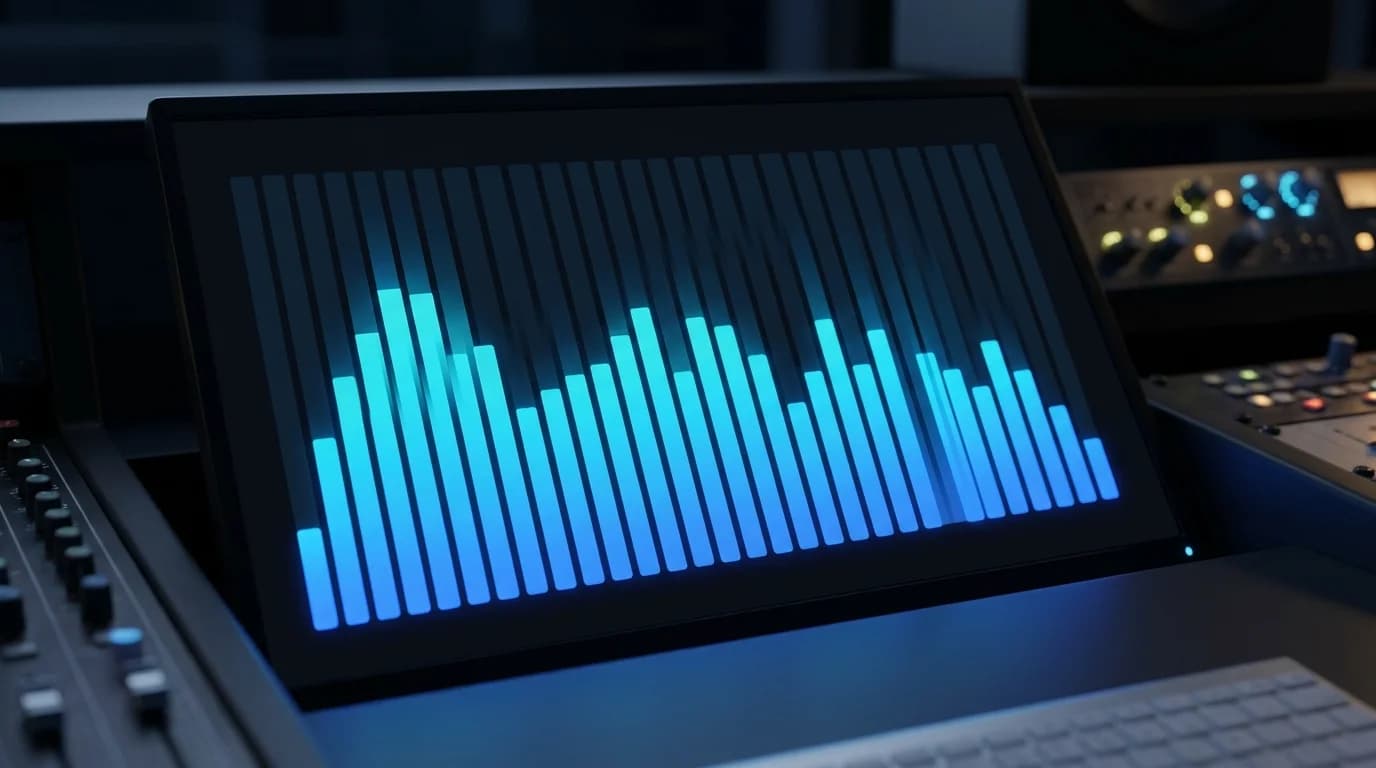
Seeing Sound#
Sound is invisible. But with a spectrum analyzer, you can display the frequency content of audio as a real-time graph.
Once you can read a spectrum analyzer:
- You can instantly see if the low end is too heavy
- You can identify peaks at specific frequencies
- You can visually compare before and after mastering
- You can pinpoint the cause of "something sounds off"
For DJs and music creators, a spectrum analyzer is a diagnostic tool for audio health. This article breaks down the fundamentals so you can start reading one with confidence.
Spectrum Analyzer Basics#
Reading the Display#
A spectrum analyzer screen has two axes:
- Horizontal (X-axis) — Frequency (Hz). Low sounds on the left, high sounds on the right
- Vertical (Y-axis) — Volume (dB). Louder at the top, quieter at the bottom
The displayed curve (spectrum) shows how much energy is present at each frequency at any given moment.
Logarithmic Scale#
The horizontal axis uses a logarithmic scale. This means 20Hz-200Hz, 200Hz-2kHz, and 2kHz-20kHz each occupy the same width on screen.
This matches how human hearing perceives frequency. Think of a piano keyboard: each octave doubles the frequency, but we perceive each step as an equal interval.
Frequency Band Guide#
Audio can be divided into five main bands. Knowing each band's characteristics makes spectrum interpretation significantly easier.
Sub Bass (20-60Hz)#
Bass you feel in your body. Reproduced by club subwoofers and large speaker systems.
- Instruments: Sub bass synths, lowest kick drum frequencies
- Character: Felt more than heard
- Note: Cannot be reproduced by phones or small speakers
In EDM and hip hop tracks, energy typically concentrates heavily in this range. Check the arrangement and playback system before removing this band.
Low End (60-250Hz)#
The foundation of the mix.
- Instruments: Bass guitar, kick drum, low piano notes
- Character: Provides warmth and body
- Note: Too much causes a "muddy" or "boomy" sound
Excess energy here muddies the overall sound. For bar or cafe BGM, slightly reducing this range helps keep music from interfering with conversation.
Midrange (250Hz-2kHz)#
Where the main musical content lives.
- Instruments: Vocals, guitar, piano, most instrument fundamentals
- Character: The frequency range where human hearing is most sensitive
- Note: Too weak sounds "thin," too strong sounds "harsh"
Human speech concentrates here as well, so BGM with excessive midrange energy competes with conversation.
Presence (2kHz-8kHz)#
Controls clarity and definition.
- Instruments: Vocal consonants, hi-hats, guitar attack
- Character: Boosting this range makes sounds "cut through" and feel clearer
- Note: Too much boost causes ear fatigue and harshness
Phone speakers reproduce this range efficiently, making it the key band for short-form video BGM.
Air (8kHz-20kHz)#
Adds sparkle and openness.
- Instruments: Cymbal sustain, string harmonics
- Character: Creates a sense of "expensive," "spacious" sound
- Note: Hearing sensitivity in this range decreases with age
Problem Patterns to Watch For#
Pattern 1: Low-End Buildup#
Appearance: Energy below 100Hz is disproportionately higher than the rest
Causes: Over-emphasized sub bass in mastering, room acoustics (standing waves), overlapping bass instruments
Impact: Muddy sound, speaker distortion, difficulty hearing conversation
Check: Listen first; distinguish file content from a playback-room problem before cutting bass.
Pattern 2: Resonance Peaks#
Appearance: A sharp spike at one specific frequency
Causes: Room mode resonance, instrument resonance, microphone presence peaks
Impact: Unpleasant ringing at that frequency
Fix: Narrow-band EQ cut (notch filter) at the problem frequency
Pattern 3: High-Frequency Rolloff#
Appearance: Steep decline above 4kHz
Causes: Microphone characteristics, digitization of old recordings, low-bitrate MP3 conversion
Impact: Dull, muffled, dated sound quality
Fix: Shelf EQ boost in the highs. Be cautious, as noise gets amplified too
Pattern 4: Limited Dynamics#
A magnitude spectrum alone cannot establish excessive limiting. Inspect the time waveform, peak levels, and dynamics, then listen at matched levels. Lowering gain does not restore transients already removed by processing.
Pattern 5: Phase Issues#
Appearance: Left/right imbalance in stereo spectrum, or specific bands disappearing when summed to mono
Causes: Excessive stereo widening, microphone phase inversion, plugin-chain phase shift
Impact: Audio disappears on mono speakers (some Bluetooth speakers, phones)
Fix: Check mono compatibility and correct phase problems
Interpret a DeckReady Diagnosis#
DeckReady estimates bandwidth alongside other measurements. An estimated cutoff is not proof of lossy provenance: older recordings and intentional filters can also limit bandwidth. FULL_BAND means the measurement found no qualifying cutoff; an unavailable measurement remains unknown.
Compare the result with the original source and listen. The diagnostic flow does not generate a processed before/after master. Check a specific file and read the explanation.
Compare With Other Measurements#
Use your DAW's spectrum display with the same window, averaging, and level settings for comparisons. A microphone measures the room and speakers as well as the file; a file-only analysis cannot identify a venue's room modes. A left/right magnitude difference alone is not proof of a phase problem; check mono summing and correlation too.
EQ Adjustment Process Using Spectrum Analysis#
- Play and observe — Listen to the full track and study the overall spectrum shape
- Identify problems — Look for bass buildup, resonance, high-frequency rolloff 3. Apply EQ corrections — Cut or boost the problem bands 4. Re-check the spectrum — Verify the changes visually 5. Trust your ears — Make the final judgment by listening
The crucial point: a spectrum analyzer is a support tool. Your ears make the final call. A flat graph does not always mean good sound, and an uneven graph does not always mean bad sound.
Conclusion#
A spectrum analyzer is a powerful tool for making audio visible.
The basics come down to three things:
- Horizontal = frequency, vertical = volume — Left is low, right is high
- Learn the five bands — Sub bass, low end, midrange, presence, air 3. Recognize problem patterns — Excess bass, resonance, high-frequency rolloff
Use the diagnosis to choose what to investigate. Bandwidth alone cannot establish quality or provenance; include listening checks.
Turn this guide into a practical next step
Level measurements and source-quality estimates answer different questions. Check the source and listen before buying another copy or deleting a file.
Check one of my tracks →Get DJ mastering tips
Weekly tips for music production.
Related Articles
How to A/B Compare Audio Like a Pro — Train Your Ears
Learn the correct way to A/B compare audio before and after processing. Eliminate loudness bias, use blind testing, and focus on the right frequency bands to make better mixing and mastering decisions.
ASMR Recording & Mastering Guide — Capture Whispers Beautifully
Complete guide to recording and mastering ASMR audio. Learn noise floor management, dynamic range optimization, platform-specific LUFS settings, and best practices for whisper-quiet content.
Mastering Tips for Bandcamp Releases — Self-Release Like a Pro
Essential mastering tips for Bandcamp self-releases. Learn optimal upload formats, genre-specific LUFS targets, album consistency techniques, and how DeckReady simplifies Bandcamp mastering.
How to Master Audio for Car Listening — Drive BGM Optimization
Master your music for car audio playback. Learn about in-car acoustics, road noise compensation, subwoofer considerations, and how DeckReady's Club preset optimizes tracks for driving.